
Your phone was fast once. You remember it. Apps opened instantly, scrolling was smooth, the camera launched before the moment was gone. Now it feels like everything needs five extra seconds to think about it first. Lets Learn How to Speed Up a Slow Android Phone in 2026.
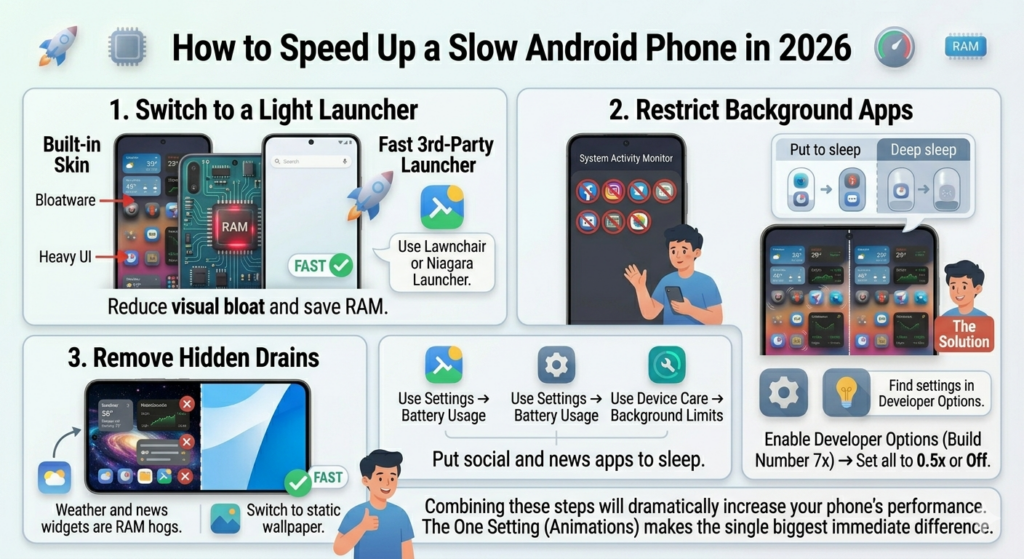
If you want to speed up a slow Android phone, you don’t need to buy a new one. You don’t need a factory reset either. Most of the time the issue is software accumulated junk, background processes eating memory, settings that made sense two years ago but are dragging the phone down now. Almost all of it is fixable. Here’s how. Also Read: What Are the Best AI Search Visibility Tools in 2026
Table of Contents
Why Your Android Actually Slows Down Over Time
Before jumping into fixes, it helps to know what’s actually happening.
Android phones don’t slow down because the processor gets weaker. The hardware is exactly as capable as the day you bought it. What changes is everything running on top of it.
Apps get bigger with every update. They store more cached data. Background processes multiply. Photos and videos fill up storage, and when storage drops below 10 to 15 percent capacity, the phone’s write speed drops significantly meaning everything from typing a message to saving a photo feels slower. System animations that felt smooth on a clean install start to feel heavy when the phone has three years of data on it.
The slowdown is gradual so you barely notice it happening. And then one day you’re waiting eight seconds for the camera to open and wondering what went wrong.
Nothing dramatic went wrong. It’s just buildup. And buildup is clearable.
The One Setting Most People Have Never Touched That Makes a Real Difference
This is the one. If you do nothing else in this article, do this.
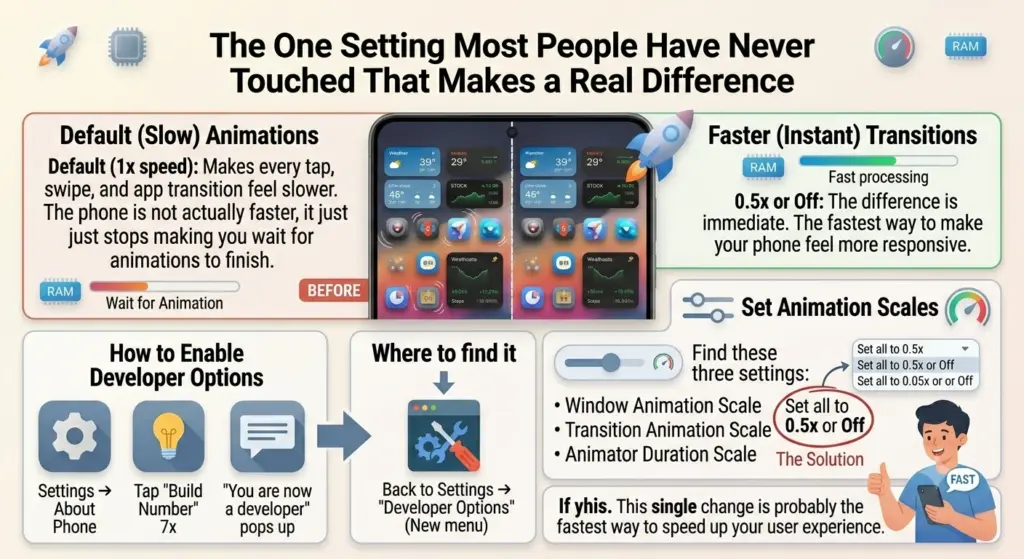
Android has a hidden developer menu that gives you access to animation speed controls. By default, system animations run at 1x speed. Dropping them to 0.5x — or turning them off entirely — makes every tap, swipe, and app transition feel noticeably faster. The phone isn’t actually processing anything faster. It just stops making you wait for animations to finish before showing you the next screen.
Here’s how to get there:
Go to Settings → About Phone → Build Number. Tap Build Number seven times in a row. You’ll see a message that says “You are now a developer.” Go back to Settings and you’ll find a new option called Developer Options.
Inside Developer Options, look for three settings:
- Window Animation Scale
- Transition Animation Scale
- Animator Duration Scale
Set all three to 0.5x. If you want the fastest possible feel, set them to Off.
The difference is immediate. This single change is probably the fastest way to speed up a slow Android phone without deleting anything or changing how you use it. Also Read: Grammarly vs QuillBot vs ChatGPT: best AI writing assistant?
Your Storage Is Probably More Full Than You Think
Low storage is one of the most common reasons people try to speed up a slow Android phone and the easiest one to fix. The rule is simple: keep at least 15 to 20 percent of your storage free at all times. On a 128GB phone that’s around 20GB. On a 256GB phone, aim to keep 50GB clear. Below that threshold, your phone’s memory chips slow down on writes — and that drags everything with it. Where the storage actually goes:
Photos and videos are almost always the biggest offenders. Use Google Photos backup and then delete the local copies. You keep everything, the phone gets its storage back.
WhatsApp and Telegram media builds up silently. Forwarded videos, voice notes, downloaded images, these stack up fast. WhatsApp alone can eat several gigabytes over a year without you actively sending anything large. Go to Settings → Storage to see exactly how much each app is using. Delete media files inside the apps themselves, not just from your gallery.
App cache is temporary data apps store to load faster. In theory it helps. In practice, after months of accumulation it just sits there taking up space. Go to Settings → Apps, open any heavy app, Facebook, YouTube, Instagram, Google Chrome and tap Clear Cache. This won’t delete your account or your data. It just wipes the temp files.
Files by Google is the easiest tool for bulk cleanup. It scans for duplicate photos, blurry screenshots, large files, and backed-up content and gives you a one-tap way to delete them. Free, built by Google, works on any Android phone. Also Read: How to check phone is original or fake?
Background Apps Are Eating Your RAM Without Asking
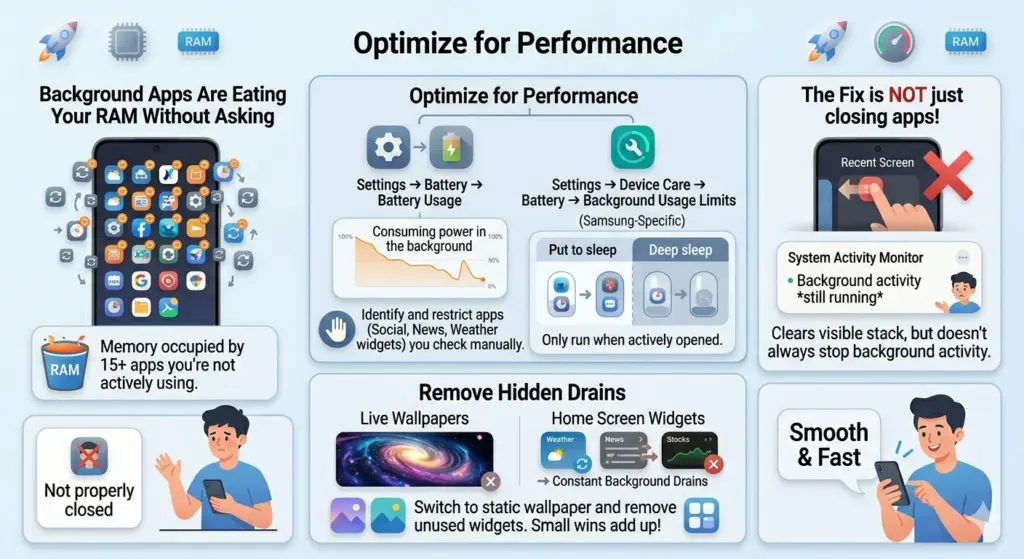
Every app on your phone that you’ve opened and not properly closed is still sitting in memory doing something. Refreshing feeds, checking for notifications, syncing data, running location services. Multiply that by fifteen apps and you’ve got a significant chunk of RAM occupied by things you’re not actively using.
The fix here isn’t just closing apps from the recent screen that clears the visible stack but doesn’t always stop background activity.
Go to Settings → Battery → Battery Usage and look at what’s consuming the most power in the background. Anything you don’t need running constantly social apps you check manually, news apps, weather widgets — restrict their background activity.
For Samsung users: Settings → Device Care → Battery → Background Usage Limits. You can put specific apps to sleep or put them in deep sleep so they only run when you actually open them.
Live wallpapers and home screen widgets are also constant background drains. Each widget refreshes data on its own schedule — weather updates, news feeds, stock prices. Remove any widget you don’t actively use daily. Switch to a static wallpaper. These are small wins individually but they add up.
The Apps That Are Slowing Down Your Phone the Most
Some apps are just heavier than others. And a few of them are notably worse than they need to be for what they do. Facebook’s Android app has a long reputation for being resource-hungry. It runs background processes aggressively, requests a wide range of permissions, and doesn’t let go of RAM easily. If you use Facebook but don’t need the full app use the mobile browser version instead, or download Facebook Lite. Same content, fraction of the resource use.
Same logic applies to other Meta apps Instagram and Messenger both run heavier than necessary. LinkedIn, Snapchat, and TikTok are other common offenders.
If you want to speed up a slow Android phone and you have several heavy social apps installed, replacing two or three of them with Lite versions or browser access makes a real performance difference — not just in speed but in battery life too.
Bloatware — The Apps You Never Installed But Can’t Ignore
Most Android phones from Samsung, Xiaomi, OPPO, OnePlus, and other manufacturers come with pre-installed apps you never asked for. Some of these run background services constantly. And because they’re pre-installed, you usually can’t uninstall them.
But you can disable them. Disabling a pre-installed app stops it from running, removes it from your app drawer, and prevents it from updating without actually deleting it from the system partition.
Go to Settings → Apps → See All Apps. Look for anything you’ve never used. Games that came pre-installed, manufacturer apps you’ve never opened, carrier apps from your network provider. Tap each one and look for a Disable button. If it’s there, use it.
You won’t break anything by disabling standard pre-installed apps. If something stops working that you didn’t expect, you can re-enable it from the same menu.
Is Your Launcher Making Everything Feel Slower Than It Is?
The launcher is the interface you see every time you unlock your phone your home screen, app drawer, and navigation. Heavy launchers with lots of animations, live icon effects, and customization features can make the entire phone feel slower even if the underlying system is fine. Also Read: Nord VPN vs Surfshark VPN: Which is best in 2026?
If you’re running a manufacturer skin like Samsung One UI or MIUI with a heavily customized launcher, switching to a lighter third-party option can help. Lawnchair and Niagara Launcher are both genuinely fast and use less RAM than most built-in launchers. Nova Launcher was the go-to for years and still works, though it’s gotten heavier over time.

If you don’t want to switch launchers at minimum, reduce the number of home screen pages, remove widgets you don’t use, and disable icon badge notifications for apps that don’t need them.
Keep Software Updated — But Understand What That Means in 2026
System and app updates in 2026 are a different conversation than they were a few years ago.
Google’s Android 15 and early Android 16 releases focused heavily on stability and efficiency. Google publicly prioritized smooth performance over adding features which means system updates in this cycle are generally good for older devices. Installing them is worth it.
App updates are more nuanced. Some apps get heavier with every update as developers add features. If you notice a specific app slowing your phone after an update, check the update changelog. If it’s adding features you don’t need, some Android builds let you roll back individual app updates from the app’s page in the Play Store.
For most apps, keeping them updated is the right call. Just don’t assume an update always means faster — occasionally an update is the cause of the slowdown, not the fix.
When to Actually Consider a Factory Reset
After everything above clearing storage, disabling background apps, adjusting animations, removing bloatware, switching launchers if your phone still feels genuinely slow, a factory reset becomes worth considering. It’s not the first move. But it is a legitimate one when software-based fixes aren’t enough.
A factory reset wipes everything and returns the phone to its out-of-box state. That removes years of accumulated data, app conflicts, and system-level junk that the fixes above can’t reach. On a phone that’s three or four years old and has degraded significantly, a clean reset often restores a meaningful amount of the original speed.
Before you do it: back up everything. Google Photos for images. Google Drive or your manufacturer’s cloud service for contacts, settings, and app data. Then do the reset from Settings → General Management → Reset → Factory Data Reset.
Give the phone a day of use before deciding it helped or didn’t. It takes a few hours for apps to reinstall, system processes to settle, and caches to rebuild.
Quick Reference — Fastest Ways to Speed Up a Slow Android Phone
| Fix | Time Required | Impact |
|---|---|---|
| Reduce animation speed in Developer Options | 2 minutes | High — immediate feel |
| Clear app cache on heavy apps | 5 minutes | Medium |
| Delete photos/videos, free up storage | 10–20 minutes | High if storage was low |
| Disable unused background apps | 10 minutes | Medium–High |
| Disable pre-installed bloatware | 15 minutes | Medium |
| Remove home screen widgets | 2 minutes | Low–Medium |
| Switch to a lightweight launcher | 5 minutes | Medium |
| Factory reset | 1–2 hours | High — last resort |
Most people trying to speed up a slow Android phone start with the wrong things downloading cleaner apps, clearing RAM manually, or looking for one-tap optimization tools. Those rarely help and some of them make things worse.
The actual fixes are right inside your phone’s settings. Animation speed, storage management, background app restrictions, bloatware removal. None of it requires a download, none of it risks your data, and most of it takes under ten minutes.
Start with the animation settings. Free up storage. Restrict the apps running in the background. In most cases that’s enough to bring a noticeably sluggish phone back to something that feels worth using again.