
You deleted a ChatGPT conversation. Maybe you hit the wrong button. Maybe you were cleaning up your sidebar and moved too fast. Maybe you just didn’t realize you’d need it again until five minutes after it was gone. Now you’re wondering can you recover deleted ChatGPT chats once they’re gone?
The short answer is: it depends on whether they were actually deleted or just archived. That distinction matters more than most people realize, and it determines whether you spend the next ten minutes finding your conversation or accepting it’s gone for good. Here’s the full picture.
Table of Contents
First — Check If the Chat Is Actually Deleted or Just Archived
Before you assume the worst, check your archived chats. This is the step most people skip and it’s the step that solves the problem the majority of the time.
ChatGPT has an Archive feature that hides conversations from your main sidebar without deleting them. If you clicked Archive instead of Delete or if ChatGPT auto-archived something the conversation is still there. Just hidden.
Here’s how to check:
- Open ChatGPT and click your profile icon in the bottom-left corner
- Go to Settings
- Click Data Controls
- Click Manage next to Archived Chats
- Scroll through the list for your missing conversation
- If you find it, click Unarchive conversation it comes back to your sidebar immediately
Thousands of people searching can you recover deleted ChatGPT chats every month have their answer right here. The chat was never deleted. It was archived. Two minutes to fix. If it’s not in your archived chats keep reading. Also Read: Grammarly vs QuillBot vs ChatGPT: best AI writing assistant?
The Honest Answer About Actually Deleted Chats
OpenAI is direct about this in their official Help Center documentation:
“You cannot recover a chat once it’s deleted. Deleted chats are not retrievable through the UI, APIs, or support.”
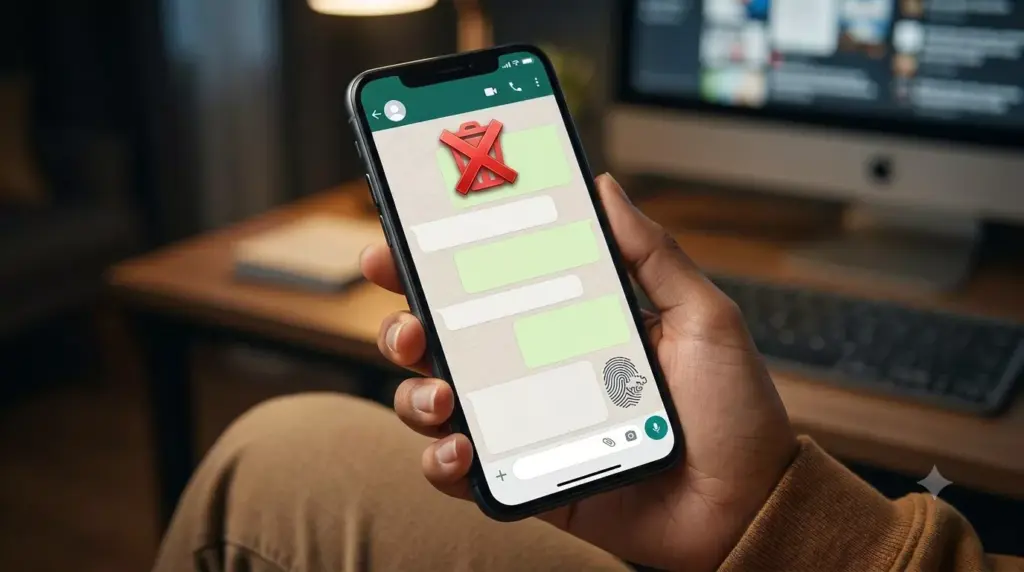
That’s from OpenAI themselves. There is no trash folder. There is no undo button. There is no customer support ticket that gets your specific conversation back. When you confirm deletion, the chat disappears from your account interface immediately.
Technically, OpenAI’s servers may retain a deleted conversation for up to 30 days before permanent removal but that window is not accessible to you. You can’t retrieve it. Support can’t retrieve it for you. No Chrome extension, no third-party tool, no recovery software gets it back from OpenAI’s servers once you’ve deleted it from your account.
So the hard answer to can you recover deleted ChatGPT chats after confirming deletion: usually no. Unless you had a backup before the deletion happened.
The Methods That Can Actually Work — In Order of Reliability
Work through these in order. The first ones are easiest and most likely to succeed.
Method 1: Check Archived Chats
Already covered above. Check here first, every time. It solves the problem far more often than people expect.
Method 2: Make Sure You’re Logged Into the Right Account
This sounds obvious but it’s a real cause of “missing” chats. If you use multiple Google accounts, multiple email addresses, or have logged in through different methods (Google, Apple, direct email) at different times — your chats are tied to the specific account that created them.
Log out. Log back in with the account you were using when you had the conversation. Your sidebar is account-specific. Logging in with the wrong account shows you a different chat history.
Method 3: Check for a Sync or Display Glitch
Sometimes chats disappear from the sidebar due to a temporary display issue — not actual deletion. Before assuming anything is gone:
- Refresh the page
- Log out and log back in
- Try a different browser or device
- Check status.openai.com for any active incidents
If there’s a known outage or sync issue, your chats may come back once it resolves. This is rare but it does happen and it costs nothing to check.
Method 4: Request a Data Export From OpenAI
This is the most powerful recovery method with one important catch.
ChatGPT lets you export all your account data, including your full conversation history in a structured JSON file. If you request this export before a conversation is permanently removed from OpenAI’s servers, there’s a chance it shows up in the export even if it’s no longer visible in your account interface.
Here’s how to request it:
- Log into ChatGPT
- Click your profile icon
- Go to Settings
- Click Data Controls
- Click Export Data
- Confirm the export request
- OpenAI sends a download link to your registered email within a few minutes to a few hours
- Download the ZIP file
- Extract it and open conversations.json
- Search the file for keywords from your missing conversation
The conversations.json file contains all conversations that were saved to your account. If the chat was saved (not started in Temporary Chat mode) and the export is requested within the deletion window, it may still be there.
This is the best realistic shot at recovery when you’re asking can you recover deleted ChatGPT chats that were recently removed. Do this immediately don’t wait. The window closes. Also Read: ChatGPT Plus vs Gemini Advanced vs Claude Pro: Which Is Worth Paying For?
Method 5: Check Browser Cache
This is a long shot but worth trying if the chat was very recent. Some browsers cache web page data locally. Depending on your browser settings and how recently the conversation happened, remnants of the page might be stored in your browser cache.
In Chrome: type chrome://cache/ in the address bar or use a cache viewer extension. It’s inconsistent and unreliable but if the export comes up empty and the conversation was from the last few hours, it costs five minutes to check.
Method 6: Data Recovery Software for Locally Saved Files
If you had previously exported your ChatGPT data or saved conversations to a local file and that file was then accidentally deleted from your computer data recovery software can help.
Tools like Tenorshare 4DDiG, Recuva (free), or Disk Drill scan your hard drive for deleted files, including text files, Word documents, or JSON exports containing saved ChatGPT conversations. This only applies if you had previously saved the conversation somewhere on your device before it was deleted. This does not recover directly from ChatGPT’s servers. It recovers locally stored files that you created.
Why Some “Deleted” Chats Were Never Saved in the First Place
This is where people get confused. Can you recover deleted ChatGPT chats that were created in Temporary Chat mode? No. And here’s why.
Temporary Chat is a mode in ChatGPT that deliberately keeps conversations out of your account history. These sessions are never written to your account at all so there’s nothing to recover. When you close the tab or end the session, the conversation is gone. It was never saved.
As of 2026, OpenAI states that Temporary Chat conversations are automatically deleted from their systems within 30 days but since they were never saved to your account, you have no access to them during that window.
If you’re not sure whether you were in Temporary Chat mode during a session check the top of your chat window. When Temporary Chat is active, it shows an indicator at the top. If that was on when you had the conversation, recovery is not possible through any method. Also Read: How to Detect AI-Written Content: Tools and Methods for 2026
Similarly, if you had Chat History turned off in your settings at the time of the conversation those sessions were never saved either. There’s no file to export and no recovery path.
The Scenarios Where Recovery Is Genuinely Possible vs Genuinely Not
This is the table most people actually need:
| Situation | Can You Recover? | How |
|---|---|---|
| Chat appears to be missing from sidebar | Yes — very likely | Check Archived Chats in Settings |
| Logged in with wrong account | Yes | Log out, log in with correct account |
| Accidental deletion, within the 30-day window | Maybe | Request data export immediately |
| Accidental deletion, past 30-day window | No | Gone permanently |
| Temporary Chat session ended | No | Was never saved to your account |
| Chat History was turned off during session | No | Was never saved to your account |
| Guest/logged-out session | No | Session-based only, no account to recover from |
| Saved to local file, file then deleted | Maybe | Use data recovery software on local drive |
| OpenAI support request | No | OpenAI states support cannot restore deleted chats |
The Situations That Fool People Into Thinking Chats Are Deleted
A few things create the impression that chats are gone when they’re not.
The sidebar only shows recent chats by default. ChatGPT organizes conversations by recency. Today, Yesterday, Previous 7 Days, Previous 30 Days, then by month. Older conversations sit at the bottom. If you’re looking for something from three months ago, scroll all the way down. It might be there.
Page refresh glitches. Sometimes ChatGPT doesn’t load your full history on the first render. Refreshing usually fixes it.
Using a different device. Your chat history syncs across devices, but sync can lag. If you just created a conversation on your phone, it might take a few seconds to appear on your desktop.
The chat history toggle. In 2026 OpenAI restructured data controls. The old “Chat history & training” combined toggle no longer exists. The current “Improve the model for everyone” toggle only controls model training it doesn’t affect whether your chats are saved. If someone turned off the old toggle thinking it was about privacy and chats stopped appearing, switching to the new settings structure may restore normal saving.
Once You Know the Answer — What to Do Next
If your chat is gone and none of the recovery methods worked here’s how to make sure you never have to ask can you recover deleted ChatGPT chats again.
Archive instead of deleting. Archiving hides a chat from your sidebar but keeps it fully recoverable. The only reason to actually delete is permanent removal. For sidebar cleanup, archive is the better habit.
Export your data monthly. Settings → Data Controls → Export Data. Takes two minutes. Gives you a complete JSON file of every conversation saved to your account. Store it somewhere safe.
Use the ChatGPT to Notion or Obsidian integration. Several free tools sync your ChatGPT history to an external note-taking app automatically. If you use Notion or Obsidian, this creates a searchable backup that lives outside OpenAI’s servers entirely.
Copy important outputs immediately. If a specific response matters a piece of code, a document draft, a plan you worked through copy it somewhere external right after you get it. Don’t rely on ChatGPT’s history as your only record.
Share the conversation before closing it. ChatGPT lets you generate a shareable link for any conversation. If you send it to yourself or save the URL, you have an external reference even if the original chat gets deleted. Also Read: How to use Notion AI to organize your entire life?
What OpenAI’s Memory Feature Does and Doesn’t Do for Recovery
ChatGPT’s Memory feature which stores facts about you across conversations is not a backup system. People sometimes assume Memory will reconstruct a deleted conversation. It won’t.
Memory stores isolated facts: your name, your preferences, things you told ChatGPT about your work or life. It doesn’t retain the full context of conversations, the specific outputs generated, or the flow of a deleted discussion. After a chat is deleted, Memory might still know your name and that you’re a developer but it can’t recreate the technical discussion you lost.
Memory is a personalization feature. It’s not a safety net for deleted content. So can you recover deleted ChatGPT chats in 2026?
If they were archived: yes, instantly. If they were saved and recently deleted: maybe, through the data export. If they were in Temporary Chat mode, created with history off, or deleted more than 30 days ago: no, and no tool changes that.
The only reliable recovery for truly deleted chats is a backup that existed before the deletion. Everything else is working with whatever window OpenAI leaves before permanent removal.
Start the export now if you just deleted something. And after this, archive instead of delete it’s the same visual result with a completely different outcome if you change your mind later.